Custom themes
DbGate has flexible theming support. You could create your own theme, changing colors of various UI elements.
Themes are created as JSON files. The simplest way to create custom theme is to use theme AI assistant.
Theme AI Assistant
For invoking theme AI assistant, open Settings/Themes, then click “Customize with AI assistant” button.
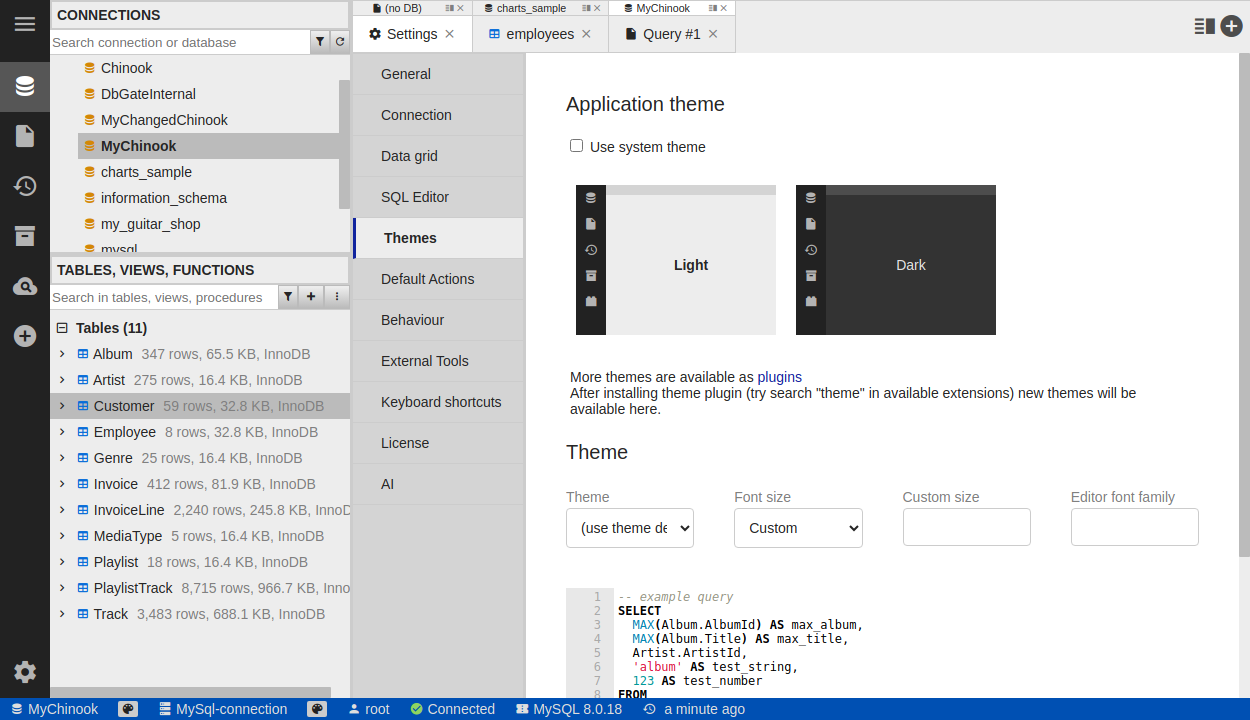
Theme AI assistent will customize your theme according to your instructions. You could specify, which colors you want to change, and how. For example, you could say “Make primary color green, and background color dark gray”.
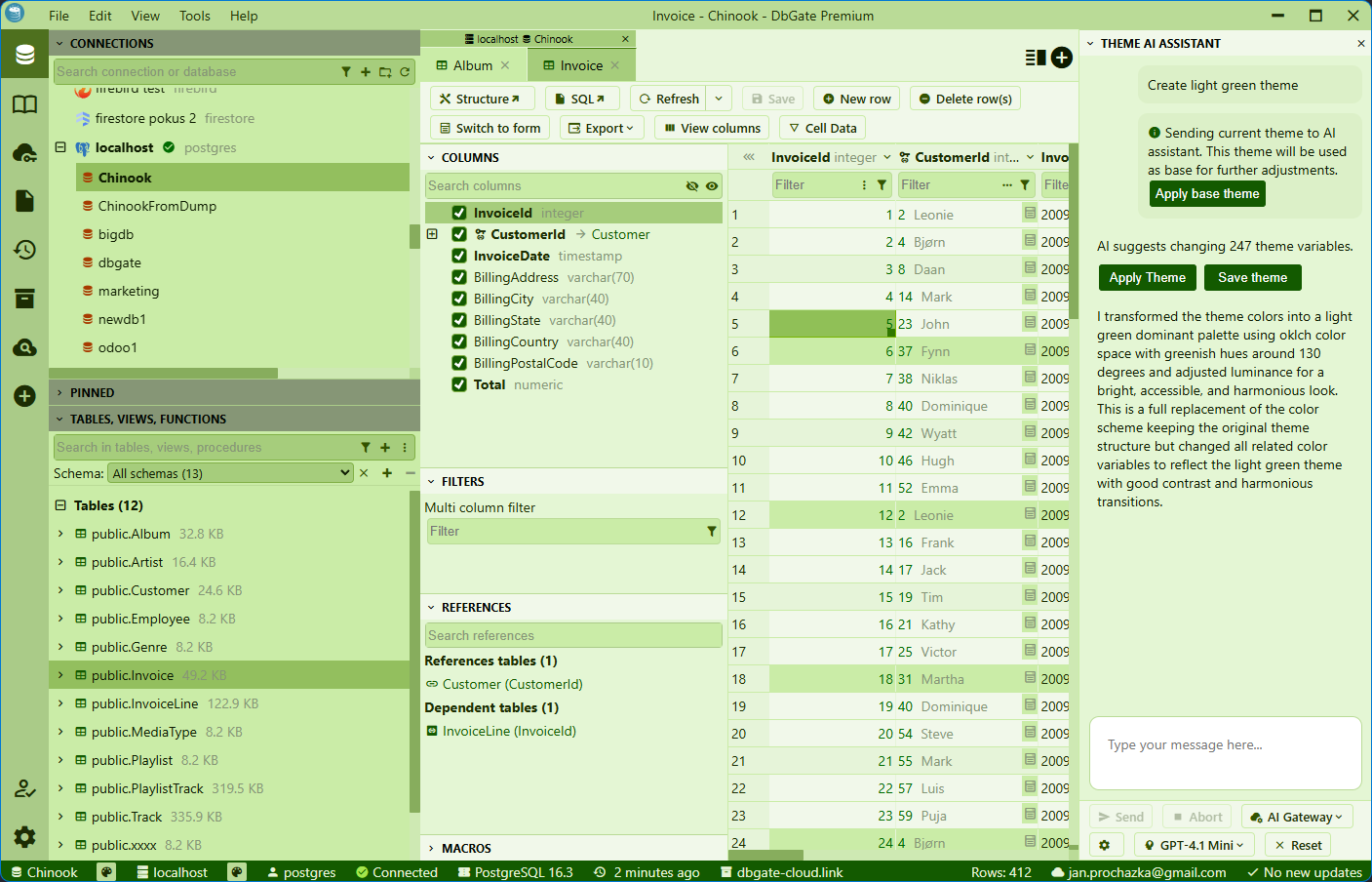
Generating theme with AI assistant will take few minutes, there is about 280 variables to be generated. After theme is generated, you could click “Apply Theme” button to use new theme. You could also use “Save theme” button to save theme as JSON file. All saved themes are then available in theme chooser. You could also manage (rename, edit, delete) themes in files widget .
Sharing themes in DbGate Cloud
You could share your themes with other DbGate users using DbGate cloud. To share theme, create pull request in DbGate knowledge base repository. Themes are stored in folder-Themes directory. See existing themes for examples. Just copy your theme JSON file to that directory, and create pull request. After merging your pull request, your theme will be available for all DbGate users in theme chooser.