Connection
Connecting to your database from DbGate is easy. You can connect to a database in a few different ways:
- Menu File/Add Connection or icon in CONNECTIONS widget
- Menu File/New SQLite database - creates new SQLite database
- Menu File/Open - you could open existing SQLite database
Connection screen
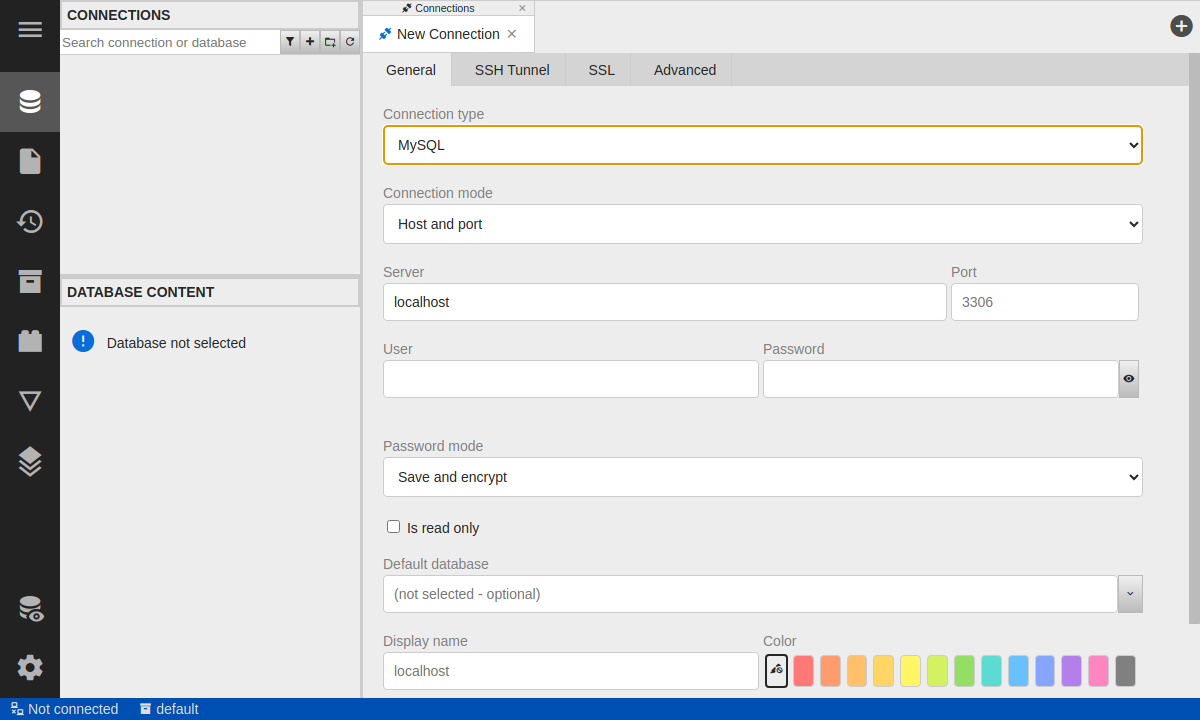
Fields in connection screen highly depends on Connection type.
Several common fields:
- Server - host name of database server
- Port - port, in case of database default port, you could leave it empty
- User, Password - authentication
- Password mode
- Save and encrypt - password is saved in encrypted way, you could not see it next time
- Save RAW - password is saved as is (without encrypting), you could check it later
- Don’t save, ask for password - password is not saved, you have to enter it when connecting
- Don’t save, ask for login and password - neither password nor login is saved, you have to enter both when connecting
- Is read only - Connection will be read only (for engines without support readonly sessions, you could not execute SQL queries in this case)
- Default database - which database will be active after connection
- Use only database <default database> - if checked, only the default database appears in the connection tree (other databases on the server are hidden)
- Display name - name, under which the connection will appear in the application
SSH Tunnel
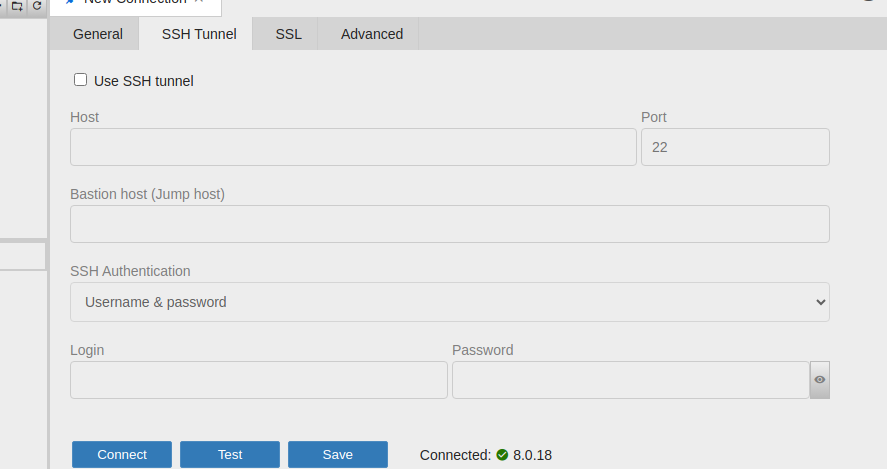
You could configure connection over SSH tunnel here.
Common fields:
- Use SSH tunnel - check to use SSH tunnel
- Host - SSH server host name
SSL
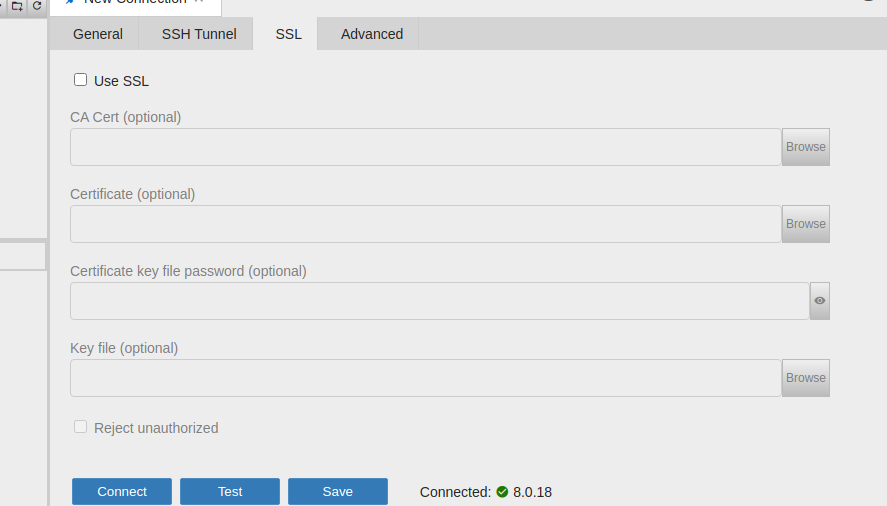
Configure SSL connection.
Common fields:
- Use SSL - check to use SSL. In most cases, this is only you have to configure to use SSL